Parametric cabinet boards in SolidCraft — dados and joinery without a woodworking plugin
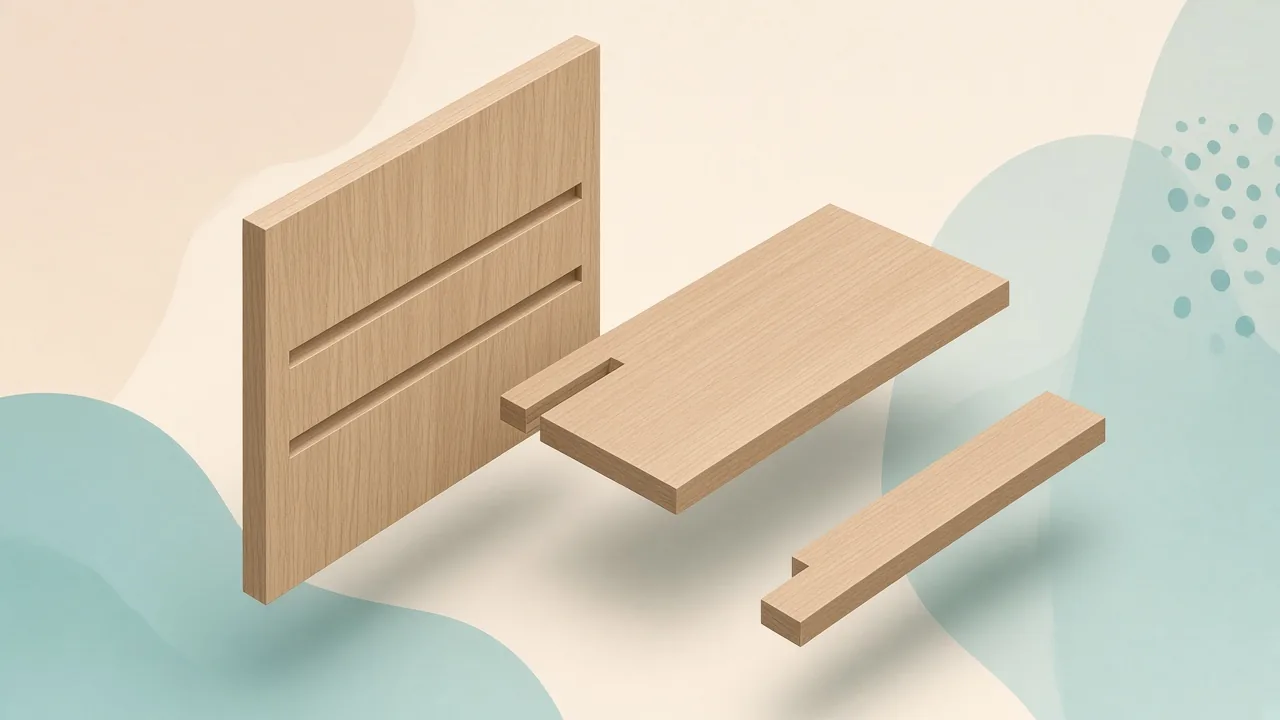
Short answer (October 2026): SolidCraft does not ship a dedicated woodworking plugin like JoinerCAD or Polyboard. There is no cabinet rule engine, edge-banding BOM or CNC post processor built in. You can still model panel stock parametrically with the ordinary sketch → extrude → cut workflow, then drive thickness, width, length and groove depth from user parameters.
What you can do today
Think of each board as a rectangular solid driven by named sizes. Dados and rabbets are extrude-cuts into that solid. A simple mortise is a pocket cut; a tenon is an extruded tab on the mating part. Assemblies and joints can place parts relative to each other at a high level. That is ordinary parametric CAD, not a furniture-specific add-on.
| Goal | SolidCraft approach |
|---|---|
| Board stock sizes | User parameters (thickness, width, length) + sketch rectangle + Extrude |
| Dado / groove / rabbet | Sketch on the face → Extrude Cut to dado_depth (or through) |
| Reference another face | Project (P) linked edges; Construction (X) for guides |
| Simple mortise & tenon | Mortise = pocket cut; tenon = extruded feature on the mating board |
| Size variants | Change parameters; optional PartBatch for many sizes |
Parameters for board stock
Open Change Parameters (MANAGE → Parameters) and add user parameters with units, for example:
thickness = 18 mm— panel stockwidth = 600 mm,length = 800 mm— overall boarddado_depth = thickness / 2,dado_width = thickness— groove sized to mating stockshelf_inset = 50 mm— distance from an edge to the first dado
Every sketch dimension and feature input is already a model parameter (d1, d2, …). Typing width = 600 while placing a dimension both creates the user parameter and dimensions with it. Expressions are unit-aware (2 * width + 5 mm, thickness / 2). Official docs: Parameters and expressions.
Sketch and extrude a board
- Create Sketch on an origin plane (XY / Top is fine for a face-up panel).
- Draw a two-point rectangle; dimension one side to
widthand the other tolength. - Finish Sketch, then Extrude the profile by
thickness(New Body).
That solid is your board blank. Changing thickness, width or length rebuilds the timeline from the first feature that uses them. For a first-part walkthrough of sketch → extrude, see the tutorial. Extrude options (cut, join, through-all, to-object) are covered in the official Solid features guide.
Dados and rabbets with Extrude Cut
A dado is a groove across the face; a rabbet is a step along an edge. Both are the same modelling move: sketch the cut outline on the face, then Extrude → Cut.
- Create Sketch on the board face that will receive the groove.
- Optional but useful: Project (P) the board edges (or another sketch’s curves) so the groove stays locked to the blank when sizes change. Use Construction (X) for guide lines that should not form profiles. Short how-to: Project geometry & construction lines.
- Rectangle for the dado: width =
dado_width, length across the board (or to projected edges). Place it withshelf_insetfrom an end. - Extrude Cut by
dado_depth(or Through All for a through-groove).
Repeat for a second shelf dado. For a rabbet, sketch a rectangle that covers the strip along the edge and cut to depth.
Example: side panel with two dados
Goal: one cabinet side, 18 mm thick, with two horizontal dados for adjustable shelves.
- Parameters:
thickness=18 mm,width=400 mm(depth of cabinet),length=720 mm(height),dado_width=thickness,dado_depth=thickness/2,shelf1=200 mm,shelf2=450 mm(from the bottom end). - Sketch a
width×lengthrectangle on XY; Extrudethickness→ board blank. - Sketch on the large face. Project the four edges. Draw two rectangles of height
dado_width, spanning left–right; dimension their bottom edges toshelf1andshelf2. - Extrude Cut both profiles to
dado_depth. - Change
lengthorshelf2and confirm the grooves move with the parameters.
Shelf boards are the same blank workflow at size width - dado_depth (or full width if they sit in open dados) × shelf depth × thickness.
Simple mortise and tenon
- Mortise: on the receiving board, sketch a rectangle sized to the tenon cross-section; Extrude Cut to the mortise depth (a pocket).
- Tenon: on the mating board, either leave a boss by cutting around it, or Extrude Join a small rectangular profile from the end face.
- Fit: drive both from shared parameters (
tenon_thick,tenon_width,tenon_length) so a size change updates both parts.
Assemblies can place components with joints so the tenon lines up with the mortise; treat that as positioning, not a woodworking clamp or glue simulation. Keep clearances explicit in the parameters if you need saw kerf or glue gap.
Size variants
Because the design is parameter-driven, one template covers a family of cabinet widths. Change Parameters rebuilds the model. For many discrete sizes (batch exports), the site’s PartBatch flow can run parameter sets against a design — useful once the single-board template is stable. Sweeping a parameter range to catch failed rebuilds is also documented upstream as Parameter Sweep.
What this is not
Honest limits versus dedicated woodworking CAD (JoinerCAD, Polyboard and similar):
- No cabinet rule engine — no automatic carcass from “height / width / depth / number of shelves” with industry defaults for backs, plinths and doors.
- No edge-banding / hardware BOM — materials and fasteners are not a first-class furniture BOM.
- No CNC post like Polyboard — you export geometry (for example STEP) and toolpath elsewhere; SolidCraft is not a nesting or G-code package.
- No specialty joinery library — dovetails, biscuit slots and proprietary connectors are manual sketches and cuts, not one-click features.
If those are must-haves, keep your woodworking CAD for production and use SolidCraft where a general parametric solid model is enough.
Try it, and the plugin wishlist
New to the app? Start with the first-part tutorial, or open the web app in the browser. Want a real JoinerCAD/Polyboard-style woodworking plugin or cabinet tools? The maintainers track product requests on GitHub — open or upvote an issue on tangency-labs/solidcraft. This guide does not open one for you.
Sources (checked 26 October 2026)
- Official sketching (Project, Construction, profiles) — https://docs.solidcraft.io/guide/sketching.html
- Parameters and expressions — https://docs.solidcraft.io/guide/parameters.html
- Solid features (Extrude cut/join, timeline) — https://docs.solidcraft.io/guide/features.html
- This site: Project & construction · Tutorial · PartBatch
- Upstream tracker — https://github.com/tangency-labs/solidcraft
More articles: SolidCraft blog · Not affiliated with SolidCraft or Tangency Labs (about this site).